



Dauntless support
Manual registry troubleshooting
This is the manual alternative to the procedure described in Microsoft KB 181050. Review the Microsoft instructions first.
This procedure changes a Windows registry setting that can affect how applications receive internet data. You must be comfortable editing the registry and have permission to do so. On a managed computer, ask your system administrator for help.
1. Open Registry Editor
Open the Windows Start menu and choose “Run...” or “Run Program.” Enter regedit /v and select OK or press Enter. The way to open this dialog varies by Windows version.
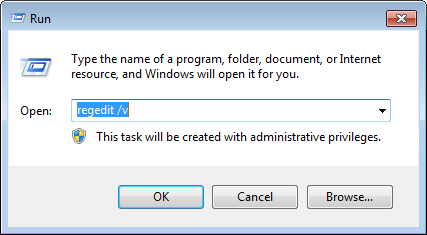
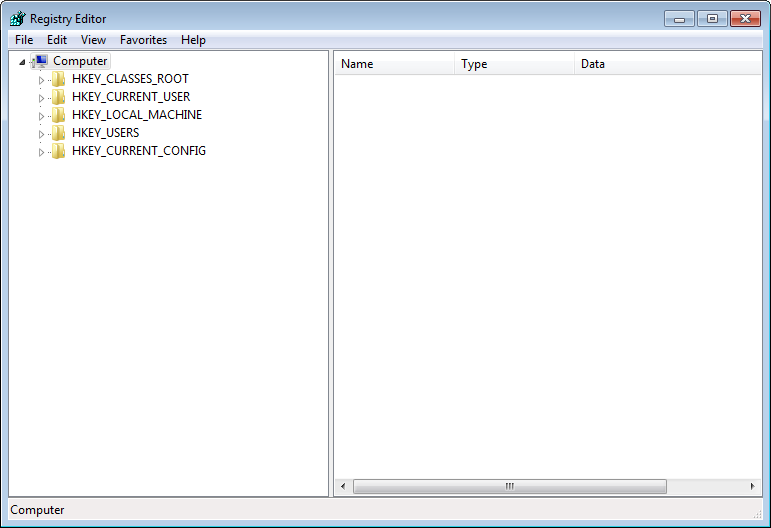
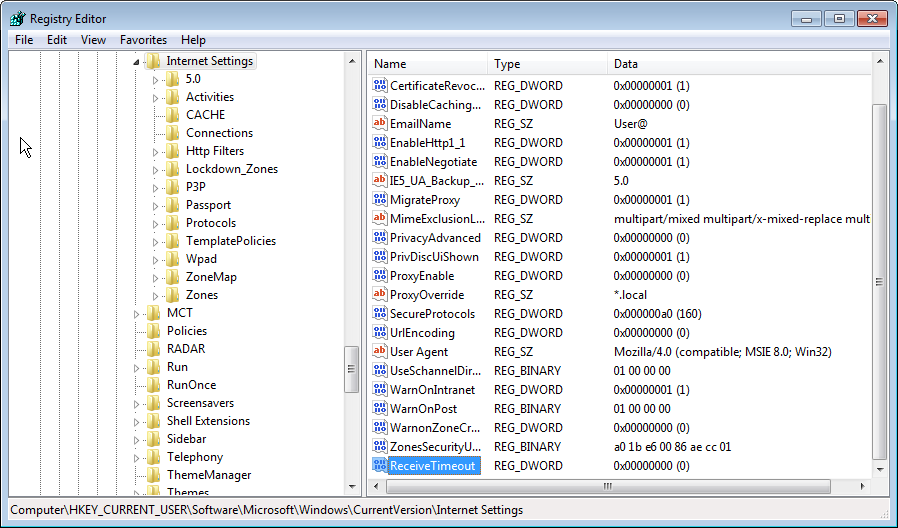
Run Registry Editor with administrator access and review any prompts. The window should resemble this example.
2. Locate ReceiveTimeout
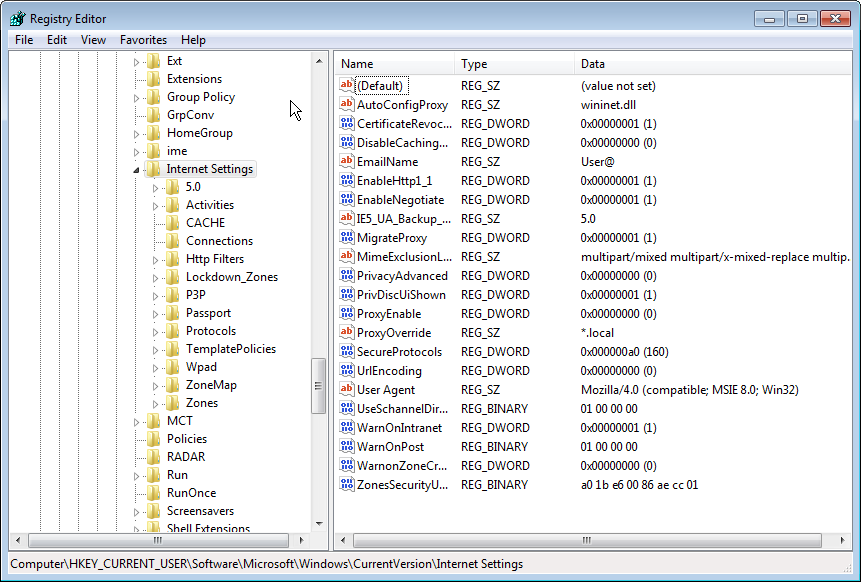
Select this location in the tree:
HKEY_CURRENT_USER\Software\Microsoft\Windows\CurrentVersion\Internet Settings
Look in the right-hand pane for ReceiveTimeout. The following example shows the location before that value has been added.
3. Add or edit the value
If ReceiveTimeout already exists, edit it. If it is missing, right-click Internet Settings and choose New... DWORD Value, not New Key.
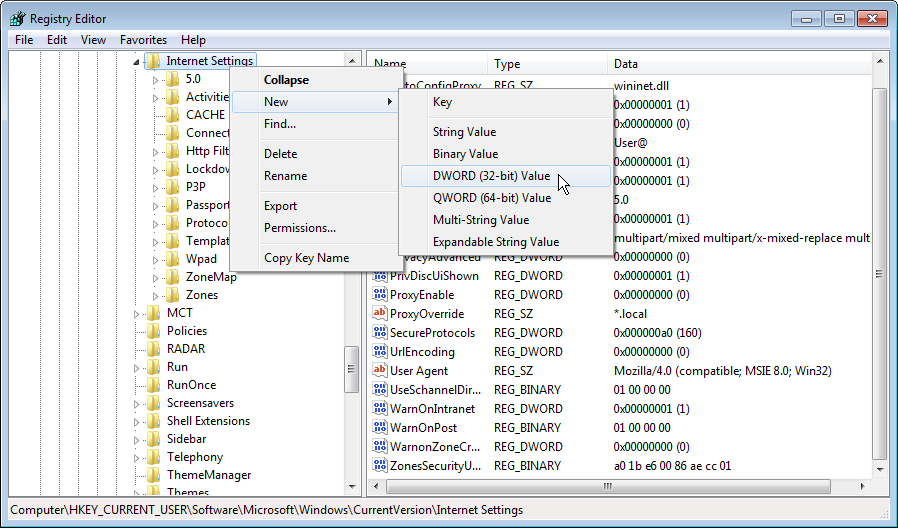
The older procedure recommends a 32-bit value first and suggests trying 64-bit if that does not work. This version-dependent advice should be checked with your system administrator before changing the value type.
Name the value ReceiveTimeout, exactly as shown.
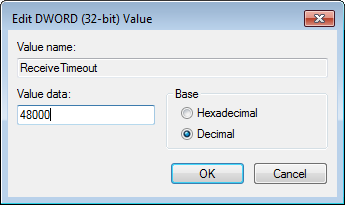
Double-click the value and enter 48000 with Decimal selected. The instructions also give 120000 as an alternative value.
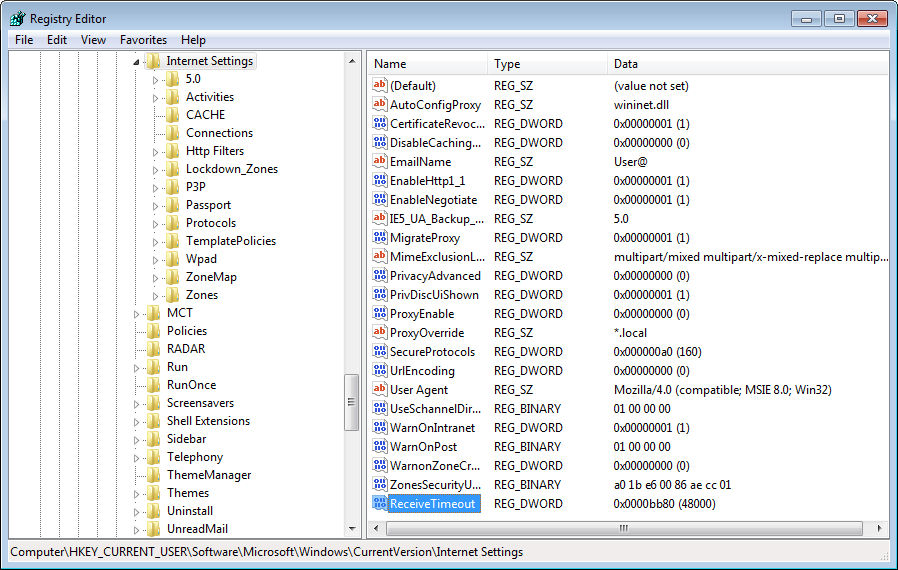
Check the saved value in the main list.
4. Restart and retry
Close Registry Editor, restart the PC, and try activation again. If the problem remains, recheck the location, spelling, value, and selected number base.
The older procedure also suggests deleting the ReceiveTimeout value as an alternative, because the effect can vary by Windows version. Confirm this with your administrator before doing so.
If another program repeatedly resets the value, contact that program's vendor or your system administrator to investigate its settings.
* An Activation Code may also be called an Unlock Key, Unlock Keycode, Unlock Code, Keycode, Registration Code, License Key, or Serial Number. The label in your purchase email or software may vary.