Using Data Files
As you probably already noticed some of GroundSChool JAA ATPL for PocketPC installations files is quite big, and not every pda have enough free space to even install it. So solution is to store Test's data file on storage card (SD/CF/microSD etc).
At first download and install any of GroundSchool JAA ATPL for PocketPC which is small enough to install on your pda (i.e. IFR Communcation test). Next, download separate test's data file using "Data only download" link instead of "Install download" on GroundSchool JAA ATPL for PocketPC order page. Store this file in folder which you will be able to locate later (i.e. on Desktop).
Note: ALL TESTS download contain all tests' data files packed in one archive file. Vista and XP users should be able to open it using explorer (it is called compressed folder there) and copy files from there just like from casual folder. In other cases unpack files from the archive before using.
Now put your storage card from your PDA to PC's card reader (if you don't have card reader please skip this step). Open storage card disk in your file explorer software and create folder with name GSJAA. After that copy Test's data file (this files has a "gsj" file extension) you need to that folder and put storage card back to your PDA. Now all tests that has data files in GSJAA folder will be available in GroundSchool JAA ATPL for PocketPC.
if you don't have card reader in your PC then use next solution:
Windows Vista users:
Connect your pda to your pc. Wait until pda is connected and synchronized. Open Mobile Device Center. If your device is connected you should see "Explore" button on top toolbar over devices list.
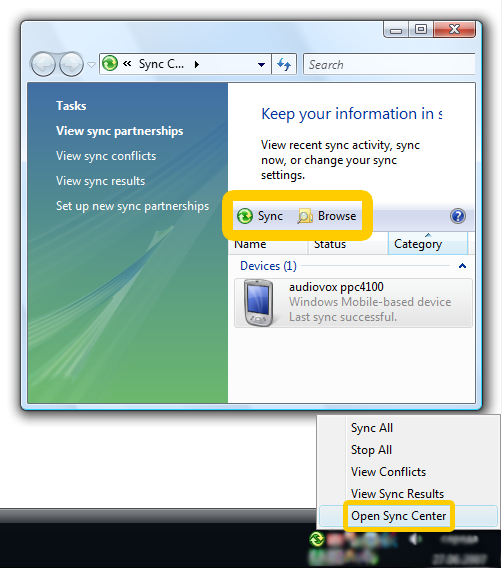
- Click "Explore" button.
- Locate folder named something like "Storage card" (it could slightly differ on various pda - CF Card, Memory card etc.). Open it.
- Create folder named GSJAA.
- Copy tests' data files you need to this folder.
Windows XP/ME/98 users:
Connect your pda to your pc. Wait until pda is connected and synchronized. If your device is connected you should see green ActiveSync icon in the tray.
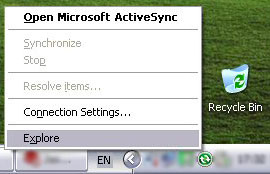
- Right click on ActiveSync icon in tray and select "Explore" menu item.
- Locate folder names like "My Windows Mobile Device" or "My PocketPC device" or something similar to this. Open it.
- Locate folder named like "Storage card" (the names slightly differ on various pda it could be CF Card, Memory card etc.). Open it.
- Create folder named GSJAA.
- Copy tests' data files you need to this folder.
That's all! Now all tests which data files located in GSJAA folder on your storage card will be available when you will launch your copy of GroundSchool JAA ATPL for PocketPC.
© 2026 Dauntless Aviation • 4950C York Road 110, Buckingham, PA, 18912, USA •
Contact Us •
Privacy Policy / Terms / Conditions
|