| AutoMETAR - real world weather for the Fly! flight simulator |
 |
AutoMetar is now an older product. You are welcome to download and use it, but please understand that absolutely no technical support is available on this item from dauntless software / faatest.com. If you have trouble with this software, please consult an internet Fly! user's group for assistance. TRI's
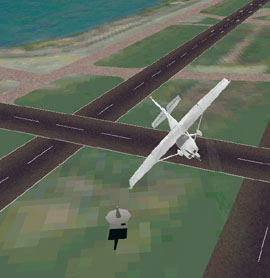
flight simulation product FLY! allows for importation of METAR files
into the game to allow for the simulation of 'real world' weather. AutoMETAR
automates this--it automatically goes to the website of the NOAA and
downloades US METAR data for you.
As always, to show your appreciation for this item, please spread the word about Dauntless Software. Specifically, if you are or know student pilots (PP, IFR, etc), please encourage them to download our GroundSchool software, and, if they like it, to register it. The very modest registration fees help us keep this site growing with new stuff such as you see here.
|
| Item | Download | ||
|
|
|||
| AutoMETAR - automatic weather download utility for TRI's FLY! flight simulation game. |
|
||

| Frequently Asked Questions | |
|
How Does it Work? Launch AutoMETAR before you start FLY! Click on 'Get Metar' and, if you are connected to the Internet, AutoMETAR will being the process of downloading METAR data from the NOAA onto your computer. In FLY!, use the Import METAR feature on the environment screen to import the METAR file called 'CurrentMETAR.txt' This should import real world METAR (weather) data for the US into your FLY flight.
Will it cause performance problems for FLY?? No, not really. Of course having another program running simultaneously won't cause FLY! to run any faster, in practice the performance hit is truly minimal. That said, if you have an underpowered syystem to begin with, well, what can we say... I get an 'access violation' during the install Click on "ignore." This is not a problem,
just an annoyance on some systems.
Fly Tells me "Error Importing METAR Data"
This is a Fly! problem, not an AutoMETAR problem.
Fly! has difficulties with certain real-world METARs. Hopefully the Fly! team will address this through
Patches of the product. Incidentally, you HAVE patched you Fly! to the latest version, right? If not,
go to the Fly web site.
Why
is it slow?
NOAA METAR
files are large--around 200k each. This can make the download slow if
you are on a slow line. Additionally, the NOAA's web site tends to be
quite slow during peak periods.
That said, I'm on a fast connection, and AutoMETAR routinely does its work within
three seconds.
When
are METAR files updated?
NOAA METAR
files are updated at least every hour on or about the forty-five minute
mark. Unfortunately, as of this moment, FLY! has no mechanism that we
know of to update METAR data while inflight except by going to the environment
screen and clicking Import METAR.. Nevertheless, AUTOMetar gets
the latest METAR and sticks it into CurrentMETAR.txt every 15 minutes
or so. Therefore, if, periodically during your flight you go into the
ENVIRONMENT screen and import CurrentMETAR.txt again, you should have
the latest weather.
Can
I use AutoMETAR data for real-world flight planning?
NO! The
NOAA discourages this, and we at Dauntless Software also discourage this.
Internet delivery of weather information is just not reliable enough yet.
FLY!
did not display the METAR data correctly.
Sorry--we're
not the ones to call on this. AutoMETAR simply passes along the data.
The good folks at TRI are responsible for what is done with it. TRI's
weather engine is quite powerful--but certainly it can't interpret every
possible METAR.
Can
I place the downloaded file on my web site?
A major
reason we created AutoMETAR is to attract visitors to dauntless-soft.com.
As such, we must insist that you:
AutoMETAR
doesnt seem to be working...
AutoMETAR
depends on:
How
can I show my appreciation?
Bookmark
dauntless-soft.com and do the following: if you need aviation-related
software that we have available, please register our software. If you
need books, please follow our Amazon.com link to give us credit. If you
need magazines, please follow our Enews links. Dauntless-soft.com runs
essentially not for profit--your support helps us continue to bring you
neat stuff like AutoMETAR.
Happy
FLYing!
|